How to Fix, Upscale and Restore Video with AI: Video Quality Enhancer

On this page
We’ve all been there: you capture a perfect moment, but the footage is blurry, shaky, or grainy. In the past, this footage was unusable. Today, it’s just a starting point.
Video enhancement is the process of using software to digitally improve the resolution, clarity, and stability of a video file. Whether you’re restoring old family recordings, cleaning up footage shot in low light, or upscaling a 720p video to 4K, AI-powered video quality enhancers have transformed what’s possible.
According to Statista, over 82% of all internet traffic now comes from video content. With so much footage being created daily, the demand for tools that can improve video quality has never been higher.
This guide covers the technical foundations of video enhancement, the best tools available in 2026, and a practical workflow to restore your footage. Whether you’re a content creator, educator, or just someone who wants better home videos, you’ll find actionable insights here.
What is Video Enhancement? The Core Metrics
Video quality isn’t a single number. It’s a balance of three interconnected factors that determine how your footage looks and feels.
The Three Pillars of Video Quality
Resolution (Pixels)
The dimensions of your video frame - 720p, 1080p, or 4K. Higher resolution means more detail.
Key insight: Simply stretching a video doesn't add detail. True "upscaling" uses AI to generate new pixel information.
Bitrate (Data)
The amount of data processed per second, measured in Mbps. This affects how much detail survives compression.
Key insight: A high-resolution video with low bitrate still looks "blocky" due to compression artifacts.
Stabilization (Motion)
The smoothness of footage. Shaky camera work can be fixed by analyzing frame-by-frame motion data.
Key insight: Stabilization software creates a "virtual camera path" by cropping and smoothing each frame.
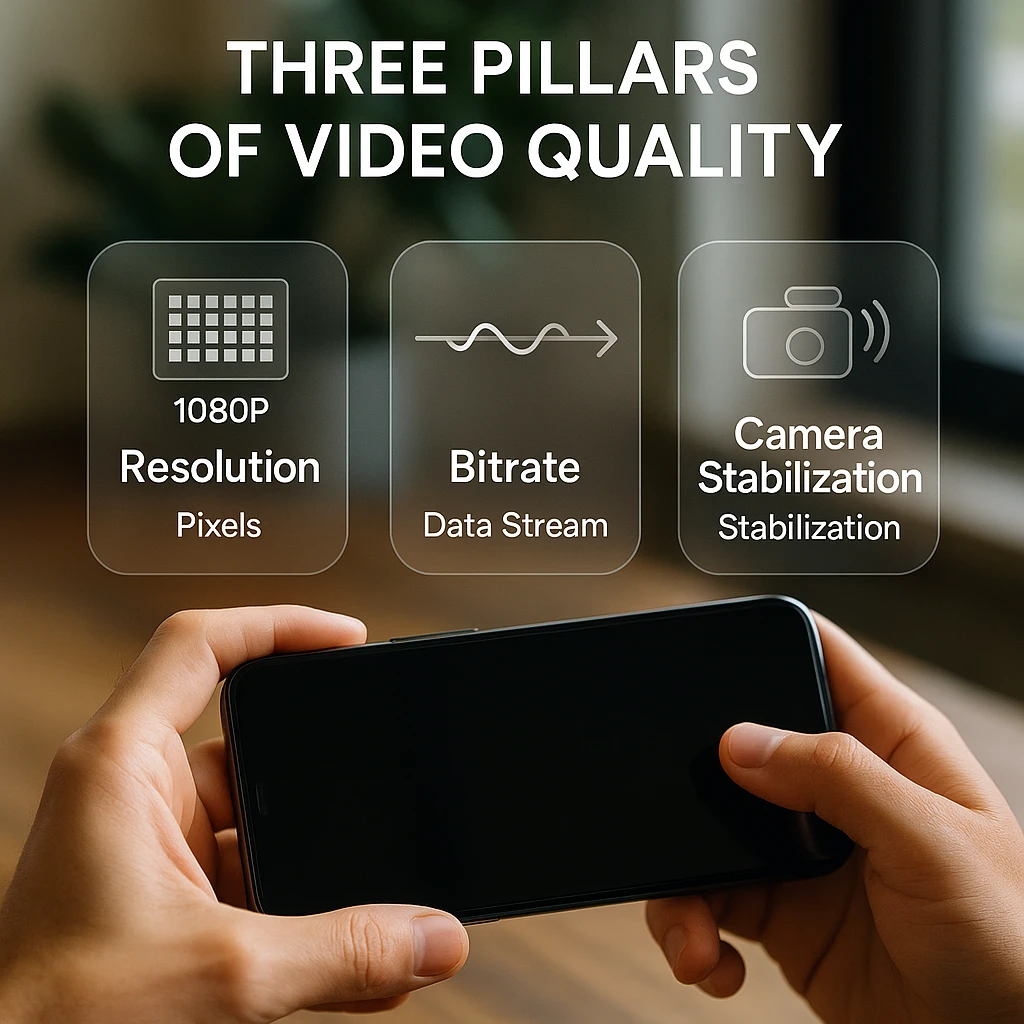
Understanding these three factors helps you identify what’s actually wrong with your footage. A video might be high-resolution but still look terrible because of low bitrate or camera shake. Effective video enhancement addresses the specific problem - not just throwing a “sharpen” filter on everything. For step-by-step help by issue: how to unblur video online (blur), video resolution converter (low resolution), or free online video quality enhancers (no-watermark tools).
How AI Changed Video Enhancement
The difference between traditional enhancement and AI-powered tools is fundamental. It’s the difference between guessing and understanding.
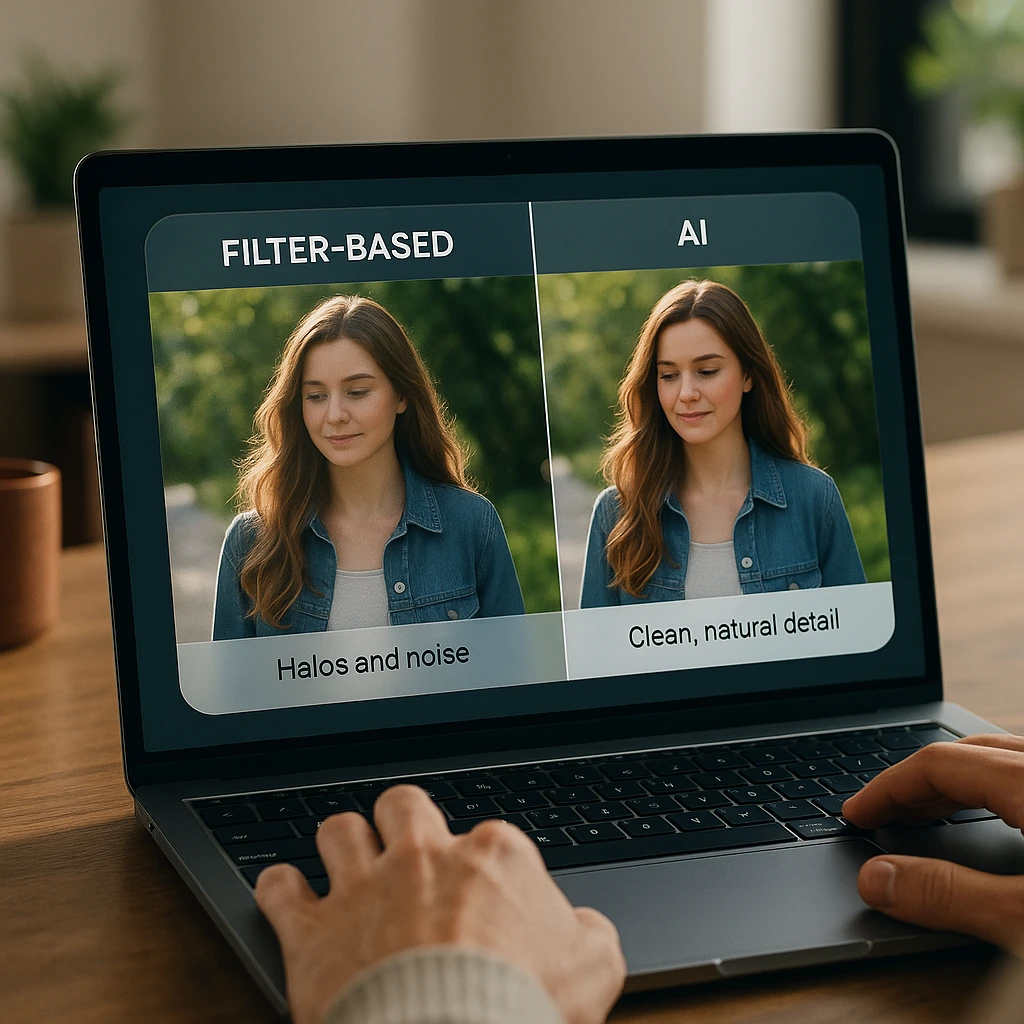
Filter-Based Enhancement
Traditional "sharpening" filters simply increase contrast around edges. This creates a harsh, unnatural "halo" effect and often amplifies noise rather than removing it.
- Increases edge contrast artificially
- Creates visible halos around objects
- Amplifies existing noise
- No understanding of content
Deep Learning Enhancement
AI models use deep learning to understand context. If a face is blurry, the AI references millions of faces to reconstruct realistic details - not just sharpen the blur.
- Generates new, realistic pixel data
- Understands what objects should look like
- Removes noise while preserving detail
- Context-aware reconstruction
Generative AI Features
Modern AI enhancers can do more than just improve existing footage. Features like "generative fill" can remove unwanted objects or extend backgrounds intelligently - capabilities impossible with traditional filters.
This shift explains why AI video enhancers produce dramatically better results. They’re not applying mathematical transformations - they’re making educated predictions about what the video should look like based on training data from millions of examples.
Common Video Problems and How to Fix Them
Before choosing a tool, you need to diagnose what’s wrong with your footage. Each problem requires a different solution.
Blurry Footage
Cause: Missed focus, camera shake during capture, or low source resolution.
Solution: AI deblurring or upscaling. The software analyzes patterns to reconstruct sharpness.
Grain and Noise (Low Light)
Cause: High ISO settings in dark environments. The sensor "guesses" color data, creating digital speckles.
Solution: AI denoising. Modern algorithms distinguish between noise and actual detail, removing only the unwanted artifacts.
Shaky Camera
Cause: Handheld shooting without a gimbal or tripod. Movement compounds with each frame.
Solution: AI stabilization. Software creates a smooth virtual camera path by cropping and adjusting each frame.
Compression Artifacts
Cause: The "blocky" look from streaming, downloading low-quality files, or aggressive video compression.
Solution: AI artifact removal. Algorithms identify and smooth out the characteristic block patterns without losing real detail.
Many videos suffer from multiple issues simultaneously. Old home videos, for example, often combine low resolution, grain, and compression artifacts. Modern AI enhancers can address several problems in a single pass, but it’s still important to understand what you’re dealing with. For tips on working with recorded content, see our guide on how to record lectures and convert to text.
Video Quality Enhancer Tools: 2026 Landscape
The market has three distinct categories of video enhancement tools, each suited to different needs and technical comfort levels.
Choose Your Enhancement Path
Desktop Software
Maximum power and control for serious work. Requires download and often a capable GPU.
- Topaz Video AI - Industry standard
- HitPaw VikPea - User-friendly
- AVCLabs - Windows/Mac
Online Tools
Browser-based solutions for quick fixes. No installation required, but limited file sizes.
- Vmake AI - Easy upscaling
- TensorPix - Cloud processing
- Cutout.Pro - Free tier available
Mobile Apps
Quick fixes before posting to social media. Limited but fast for short clips.
- Remini - Face enhancement
- PowerDirector - Full editing
- CapCut - Social-first
Desktop Software: Maximum Control
For professional work or large files, desktop software remains the gold standard. These tools use your computer’s GPU to process footage, allowing for 4K upscaling and batch processing.
| Tool | Best For | Max Upscale | Platform | Price |
|---|---|---|---|---|
| Topaz Video AI | Professional restoration | 16x (600%) | Win/Mac | $299 |
| HitPaw VikPea | Beginner-friendly | 8x (400%) | Win/Mac | $49/mo |
| AVCLabs | Balance of features | 4x (200%) | Win/Mac | $39/mo |
| DaVinci Resolve | Full editing suite | 4x | Win/Mac/Linux | Free/$295 |
Topaz Video AI has become the industry standard for a reason - it offers the most AI models (face recovery, animation, slow-motion, stabilization) and produces consistently professional results. The one-time $299 price is steep but avoids subscription fatigue.
For those looking to create original video content rather than enhance existing footage, check out our guide on best free AI video generator tools.
Online Tools: Quick and Accessible
Browser-based enhancers are perfect for occasional use or when you don’t want to install software. The trade-off is processing time (cloud-based) and file size limits.
Most online tools offer free tiers with watermarks or resolution caps. Paid plans typically range from $10-30/month with higher limits.
When to Use Online Tools
Online enhancers work best for clips under 5 minutes and when you need results quickly. For longer projects or batch processing, desktop software is more efficient.
Mobile Apps: Social Media Ready
Mobile enhancement apps are designed for one thing: making your footage look better before posting to TikTok, Instagram, or YouTube Shorts. They’re fast but limited compared to desktop alternatives.
Remini specializes in face enhancement and does an impressive job on selfie videos. PowerDirector offers more comprehensive editing alongside its enhancement features. For tips on creating better video content, see our guide on best AI video generators.
How to Enhance Video Quality: A Universal Workflow
Regardless of which tool you choose, the enhancement process follows a consistent pattern. Here’s a workflow that applies to most AI video enhancers.
Import and Analyze
Load your footage into the enhancer. Most AI tools will automatically analyze the video to identify specific problems - noise levels, resolution, stability issues.
Tip: Let the analysis complete before making adjustments. The AI's assessment often catches issues you might miss.
Select the Right AI Model
Different content types need different approaches. Face-heavy footage (vlogs, interviews) benefits from face recovery models. Animation requires different processing than live action.
Preview Render (Critical)
Always render a 5-10 second preview before processing the full video. This catches "hallucinations" - artifacts where the AI generates incorrect or strange details.
Warning: Skipping preview can waste hours of processing time on poor results. Check faces, text, and edges carefully.
Export with Proper Settings
Choose the right codec and bitrate for your intended use. H.264 works for web delivery; ProRes or DNxHR preserve quality for further editing.
Processing Time Expectations
AI video enhancement is computationally intensive. A 10-minute 1080p video upscaled to 4K can take 30-60 minutes on a modern GPU. Factor this into your workflow planning.
Typical Processing Times (RTX 3080 GPU)
1080p to 4K upscale (5-min video)
Full restoration + upscale (5-min video)
Complete 30-min video restoration
For workflows involving video analysis and transcription, ScreenApp’s AI video watcher can help extract insights from your enhanced footage.
Video Quality Enhancer FAQ
Can I turn a 480p video into 4K?
Yes, but with limits. AI can multiply resolution by 400% (4x), but going from 480p to 4K is an 8x leap. Results often look “waxy” or artificial at that extreme. For best results, upscale to 1080p first - a more realistic 2x improvement - then consider a second pass to 4K if needed.
Are there free video enhancers without watermarks?
Most “free” online tools add watermarks. Truly free options include: DaVinci Resolve (professional editor with built-in enhancement), open-source tools like Real-ESRGAN (requires technical setup), or limited free trials of paid apps. For completely free enhancement, DaVinci Resolve is your best bet.
Why does AI video enhancement take so long?
AI video processing is incredibly GPU-intensive. The software must generate millions of new pixels for every single frame - and a 60fps video has 60 frames per second. A 10-minute video at 60fps contains 36,000 frames, each requiring complex AI inference. This is why a capable GPU matters more than CPU for enhancement work.
How does AI video enhancement actually work?
AI enhancers use neural networks trained on millions of video pairs (low quality + high quality versions). The AI learns patterns - what sharp edges should look like, how faces should appear, how noise differs from detail. When processing your video, it predicts what a higher-quality version should look like based on this training.
What is the best video enhancer app?
For desktop: Topaz Video AI is the industry standard for professionals. For mobile: Remini excels at face enhancement. For free options: DaVinci Resolve offers capable enhancement within a full editing suite. The “best” depends on your specific needs, budget, and technical comfort level.
Can I fix pixelated video online?
Yes. Browser-based tools like Vmake AI and TensorPix can reduce pixelation through upscaling and artifact removal. Results vary based on how severely pixelated the source is. Extreme pixelation from aggressive compression may not fully recover, but visible improvement is usually achievable.
Is video enhancement the same as upscaling?
Upscaling is one type of enhancement. Video enhancement is the broader category that includes upscaling (increasing resolution), denoising (removing grain), stabilization (fixing shake), deblurring, and artifact removal. A full enhancement workflow might use several of these techniques together.
Can I restore old home videos with AI?
Yes - this is one of the most satisfying use cases for AI enhancement. Old home videos typically have multiple issues (low resolution, grain, color fading) that AI can address simultaneously. Tools like Topaz Video AI have specific models for old film restoration. Results can be dramatic, transforming fuzzy VHS footage into watchable content.
Conclusion: Video Enhancement is Now Standard
Video enhancement is no longer reserved for Hollywood post-production houses. AI-powered tools have made it accessible to anyone with footage worth saving.
Quick Recommendations
For Professionals
Topaz Video AI - One-time $299, industry-standard quality for serious restoration work.
For Casual Users
Online tools or Remini - Free or low-cost, good for occasional enhancement needs.
For Free Enhancement
DaVinci Resolve - Full editing suite with capable built-in enhancement, completely free.
The key is matching your tool to your needs. Don't overspend on professional software for occasional social media fixes, and don't expect free tools to handle professional restoration work.
Enhance Your Video Workflow
ScreenApp provides AI-powered video recording, transcription, and analysis tools that complement your enhancement workflow.
Start Free TrialNo credit card required - AI video analysis included
Related Guides
Video quality guides (pillar and clusters):
- Best AI Video Enhancer Apps - Compare the 10 best tools for 2026
- How to Unblur Video Online - Fix blurry footage with 5 free tools
- Video Resolution Converter - Upscale 480p to 1080p and 4K
- Free Online Video Quality Enhancers - 7 best tools with no watermark
- How to Restore Old Videos - Bring VHS and vintage footage to 4K
More video tools:
- Best Free AI Video Generators - Create original AI video content
- Top YouTube Downloaders - Save videos for offline reference
- Best 4K Video Downloaders - Download high-resolution content
FAQ
Can I turn a 480p video into 4K?
Yes, but with limits. AI can multiply resolution by 400% (4x), but going from 480p to 4K is an 8x leap. Results often look "waxy" or artificial at that extreme. For best results, upscale to 1080p first - a more realistic 2x improvement - then consider a second pass to 4K if needed.
Are there free video enhancers without watermarks?
Most "free" online tools add watermarks. Truly free options include: DaVinci Resolve (professional editor with built-in enhancement), open-source tools like Real-ESRGAN (requires technical setup), or limited free trials of paid apps. For completely free enhancement, DaVinci Resolve is your best bet.
Why does AI video enhancement take so long?
AI video processing is incredibly GPU-intensive. The software must generate millions of new pixels for every single frame - and a 60fps video has 60 frames per second. A 10-minute video at 60fps contains 36,000 frames, each requiring complex AI inference. This is why a capable GPU matters more than CPU for enhancement work.
How does AI video enhancement actually work?
AI enhancers use neural networks trained on millions of video pairs (low quality + high quality versions). The AI learns patterns - what sharp edges should look like, how faces should appear, how noise differs from detail. When processing your video, it predicts what a higher-quality version should look like based on this training.
What is the best video enhancer app?
For desktop: Topaz Video AI is the industry standard for professionals. For mobile: Remini excels at face enhancement. For free options: DaVinci Resolve offers capable enhancement within a full editing suite. The "best" depends on your specific needs, budget, and technical comfort level.
Can I fix pixelated video online?
Yes. Browser-based tools like Vmake AI and TensorPix can reduce pixelation through upscaling and artifact removal. Results vary based on how severely pixelated the source is. Extreme pixelation from aggressive compression may not fully recover, but visible improvement is usually achievable.
Is video enhancement the same as upscaling?
Upscaling is one type of enhancement. Video enhancement is the broader category that includes upscaling (increasing resolution), denoising (removing grain), stabilization (fixing shake), deblurring, and artifact removal. A full enhancement workflow might use several of these techniques together.
Can I restore old home videos with AI?
Yes - this is one of the most satisfying use cases for AI enhancement. Old home videos typically have multiple issues (low resolution, grain, color fading) that AI can address simultaneously. Tools like Topaz Video AI have specific models for old film restoration. Results can be dramatic, transforming fuzzy VHS footage into watchable content.