
You find a tool that promises “Free AI Upscaling,” wait 10 minutes for it to process, and then… a giant watermark covers the entire video. Sound familiar?
Most “free” online video quality enhancers are just trials in disguise. They hook you with promises of AI upscaling, then slap a watermark on your export or limit you to 10-second clips.
But in 2026, a few generous platforms and open-source projects still offer genuine watermark-free enhancement. We tested dozens of tools to filter out the fakes and bring you 7 that actually let you download clean footage.
According to Statista’s video production data, over 3.7 billion videos are uploaded to the internet daily. With that volume, the demand for free enhancement tools has never been higher.
For professional paid software with more power, check our complete video quality enhancer guide.
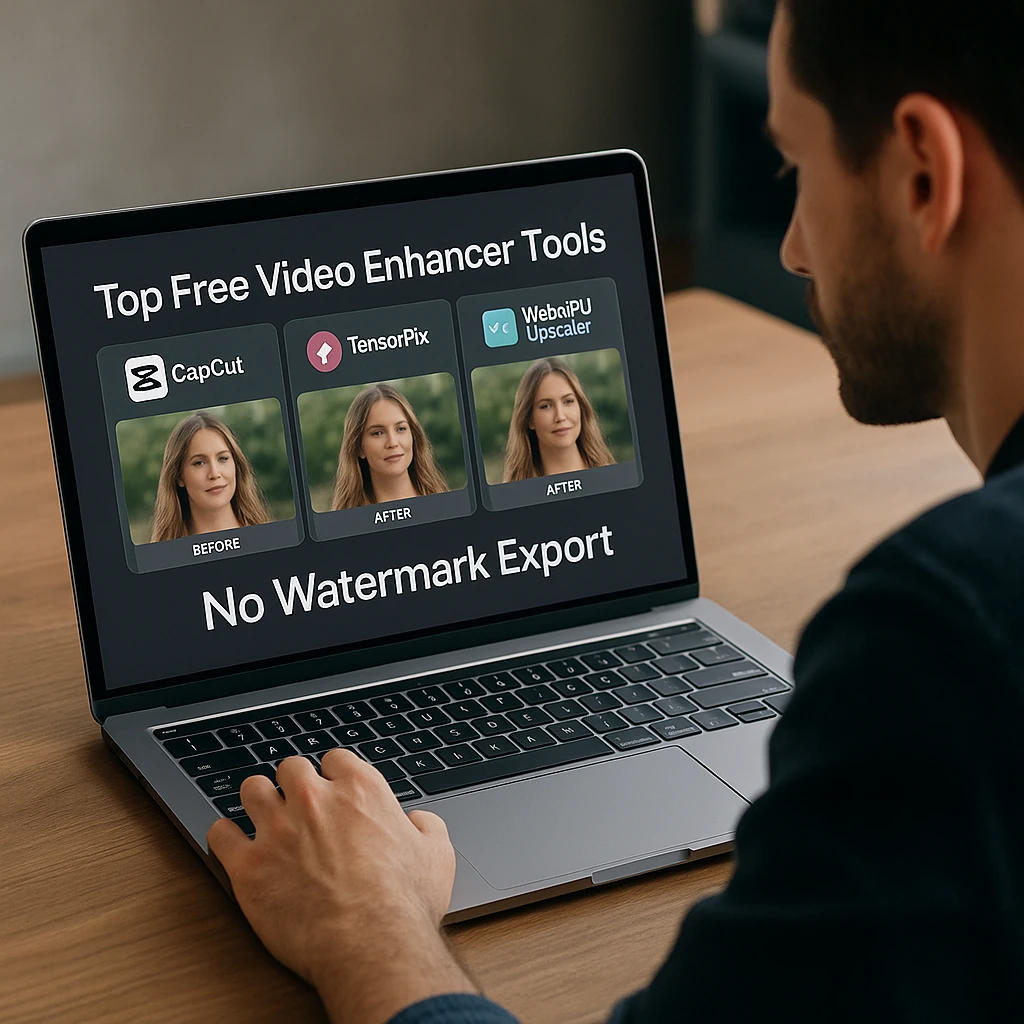
Top 3 “True Free” Tools (No Catch)
These tools offer genuine free video enhancement without watermarks. We verified each one personally.
CapCut Online Video Upscaler: Best All-Rounder
The most reliable "freemium" tool that feels premium
CapCut wins because you can export up to 4K resolution without a watermark - as long as you stick to standard assets. Their "Smart Upscaler" automatically fixes resolution and reduces noise in one pass.
Key Features
Pros
- Genuinely free 4K export
- No watermark with account
- Full editing suite included
Cons
- Account required for no watermark
- Not true AI generative upscaling
- TikTok/ByteDance owned
TensorPix AI Video Enhancer - AI Specialist
Best for specialized AI restoration - deblur, denoise, upscale
TensorPix offers genuine AI-powered video enhancement that rivals desktop software. The free tier lets you process short clips (under 3 minutes) and download without watermarks. Their browser-based AI handles deblurring, denoising, and upscaling separately.
Key Features
Pros
- True AI enhancement
- No watermark on free tier
- Multiple restoration modes
Cons
- Credit-based (limited free)
- Short clips only on free
- Processing can be slow
WebGPU Video Upscaler
Open-source, browser-based tool for privacy-conscious users
This open-source tool runs entirely on your graphics card via the browser. Zero server costs means zero watermarks, ever. Your video never leaves your computer - perfect for sensitive content. The trade-off is you need a decent GPU for good performance.
Key Features
Pros
- Completely free forever
- Total privacy - no uploads
- No watermarks ever
Cons
- Requires decent GPU
- Basic interface
- Technical setup needed
For those who prefer to record video in high quality from the start, ScreenApp captures HD footage natively without the need for post-processing enhancement.
4 More Freemium Tools Worth Checking
These tools have more limitations on their free tiers, but still offer genuine value for specific use cases.
Media.io (Wondershare)
A powerful cloud-based suite with specific "Video Clearer" and "Color Correction" tools. Works well for format conversion and basic enhancement.
Catch: Free exports limited to shorter durations or 1080p max.
Vmake AI
Excellent for e-commerce and social clips. Their video quality enhancer specifically targets social media bitrate issues and compression artifacts.
Catch: Credit system refreshes daily/weekly; heavy users hit limits fast.
Neural.love
High-end artistic upscaling with incredible quality for restoring old black-and-white footage. The AI models are among the best we've tested.
Catch: "Free" tier is technically a trial; may add small logo without promo credits.
Adobe Express
Adobe's browser-based editor with "Resize" and "Enhance" tools that are totally free forever with an account. Trusted brand with reliable results.
Catch: More of a resizer/converter than a generative AI upscaler.
Looking for more AI-powered video tools? Check out our guide on best free AI video generators for creating original content. For analyzing and transcribing your enhanced videos, ScreenApp’s video analyzer can extract key insights automatically.
Comparison Table: Which Free Tool is Right for You?
| Tool | Watermark? | Max Resolution | True AI? | Best For |
|---|---|---|---|---|
| CapCut | No (with login) | 4K | Limited | Social media creators |
| TensorPix | No | 1080p | Yes | Video restoration |
| WebGPU Upscaler | No | Unlimited | Yes | Privacy / tech users |
| Media.io | No (limited) | 1080p | Limited | Format conversion |
| Vmake AI | Free credits | 1080p | Yes | Social media clips |
| Neural.love | Trial only | 4K | Yes | Old film restoration |
| Adobe Express | No | 1080p | No | Quick resizing |
Quick Decision Guide
For Social Media
Use CapCut - Free 4K export, no watermark, full editor included.
RecommendedFor Restoration
Use TensorPix - True AI deblurring and denoising for damaged footage.
Best AIFor Privacy
Use WebGPU - Local processing, no uploads, unlimited usage.
Open Source
How to Upscale Video for Free in CapCut
Since CapCut is our top recommendation, here’s exactly how to enhance video quality online for free without watermarks.
Create a Free Account
Go to CapCut.com and sign up for a free account. This is required to remove the watermark from your exports. You can use Google, Facebook, or email to register.
Important: Without logging in, CapCut adds a watermark. The account is free and the watermark removal is automatic once logged in.
Upload to Video Upscaler
Navigate to "Magic Tools" and find "Video Upscaler" in the menu. Upload your video file - CapCut accepts MP4, MOV, WebM, and most common formats.
Select 4K Resolution
Choose "4K" as your target resolution. CapCut will upscale your video using their Smart Upscaler algorithm, which also applies noise reduction automatically.
Process and Wait
Click "Upscale" and wait for cloud processing. Processing time varies based on video length - a 1-minute clip typically takes 2-5 minutes.
Export Without Watermark
When complete, click Export. Ensure "No Watermark" is selected in the export dropdown - this should be the default for logged-in users. Download your clean, upscaled video.
Result: A 4K video with no watermark, enhanced clarity, and reduced noise - completely free.
If your video has specific issues like blur or shake, check our guide on how to unblur video online for specialized tools.
Free Video Enhancer FAQ
Server costs. Processing AI video enhancement is expensive - it requires significant GPU computing time. Watermarks are how companies force you to pay for that server time. Tools like WebGPU Upscaler avoid this by running on your own hardware instead.
Only if you run it locally. Browser-based tools like WebGPU Upscaler or installed software like Handbrake have no limits because they use your computer's resources. Cloud-based tools will always have some form of limitation - either watermarks, credit systems, or duration limits.
Yes. CapCut and Media.io have mobile-optimized websites and dedicated apps that work on iOS and Android. CapCut's mobile app is particularly polished and offers the same watermark-free export when logged in.
TensorPix uses a credit system. You get free credits that allow you to process short clips (typically under 3 minutes) without watermarks. For longer videos or heavy usage, you'll need to purchase additional credits. The free tier is generous for occasional use.
Yes. CapCut Online lets you export at 4K resolution for free with a logged-in account. Neural.love also supports 4K output in their trial tier. For unlimited 4K upscaling, use the WebGPU Upscaler if you have a decent graphics card.
For YouTube content, CapCut is the best free option because it exports at 4K without watermarks. Uploading 4K to YouTube forces their VP9/AV1 codec, which looks better than standard uploads. For restoration of old footage, TensorPix produces better AI results.
The best approach is to avoid watermarks in the first place by using tools from our "True Free" list. If you already have a watermarked video, you'd need to re-process the original source in a watermark-free tool. There's no ethical way to remove watermarks from processed videos.
Conclusion: You Don’t Need to Pay to Play
For short clips and social media content, free tools like CapCut and TensorPix deliver genuine quality improvement without watermarks. You don’t need expensive software to fix pixelated or low-resolution footage.
Quick Recommendations
Best Overall
CapCut Online - Free 4K export, no watermark, full editor included.
Best AI Quality
TensorPix - True AI restoration for damaged or blurry footage.
Best for Privacy
WebGPU Upscaler - Open source, local processing, unlimited use.
Related Guides
Video quality (pillar and clusters):
- Best AI Video Enhancer Apps - Compare the 10 best tools for 2026
- Video Quality Enhancer Guide - Complete guide to all enhancement tools
- How to Unblur Video Online - Fix focus and clarity problems
- Video Resolution Converter - Upscale 480p to 1080p and 4K
- How to Restore Old Videos - Bring VHS and vintage footage to 4K
More guides:
- Top YouTube Downloaders - Save videos for offline viewing
Skip the Enhancement Step Entirely
Record crystal-clear video from the start with ScreenApp. HD recording with AI transcription means no upscaling needed.
Start Free TrialNo credit card required - HD recording included