How to Turn a Spotify Song Into a QR Code (Free, Printable)

On this page
To turn a Spotify song into a QR code, copy the song’s share link (three-dot menu, Share, Copy song link), paste it into a free QR code generator, and download the code as a PNG or SVG. Scanning it opens the track in Spotify. The exact same moves work for a playlist, an album, an artist page, or a podcast episode, because Spotify hands out a shareable URL for all of them.
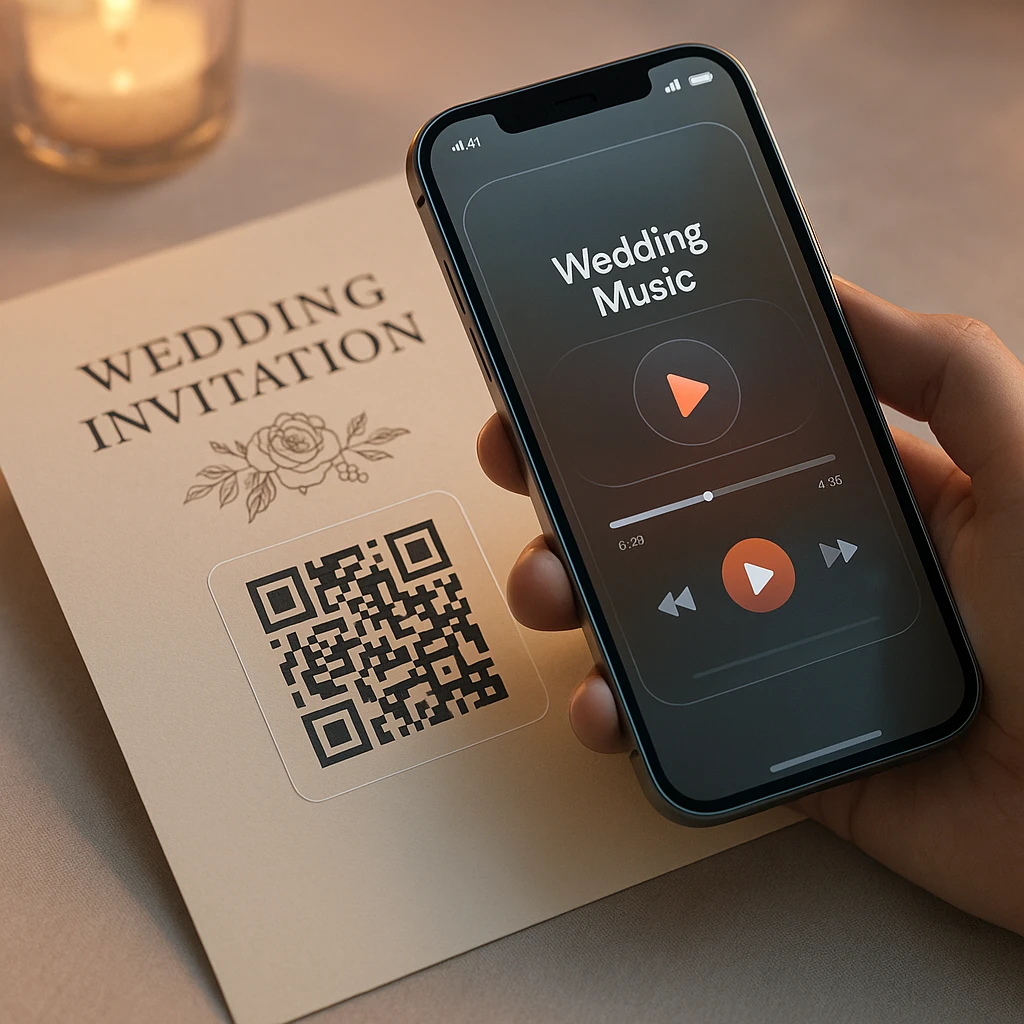
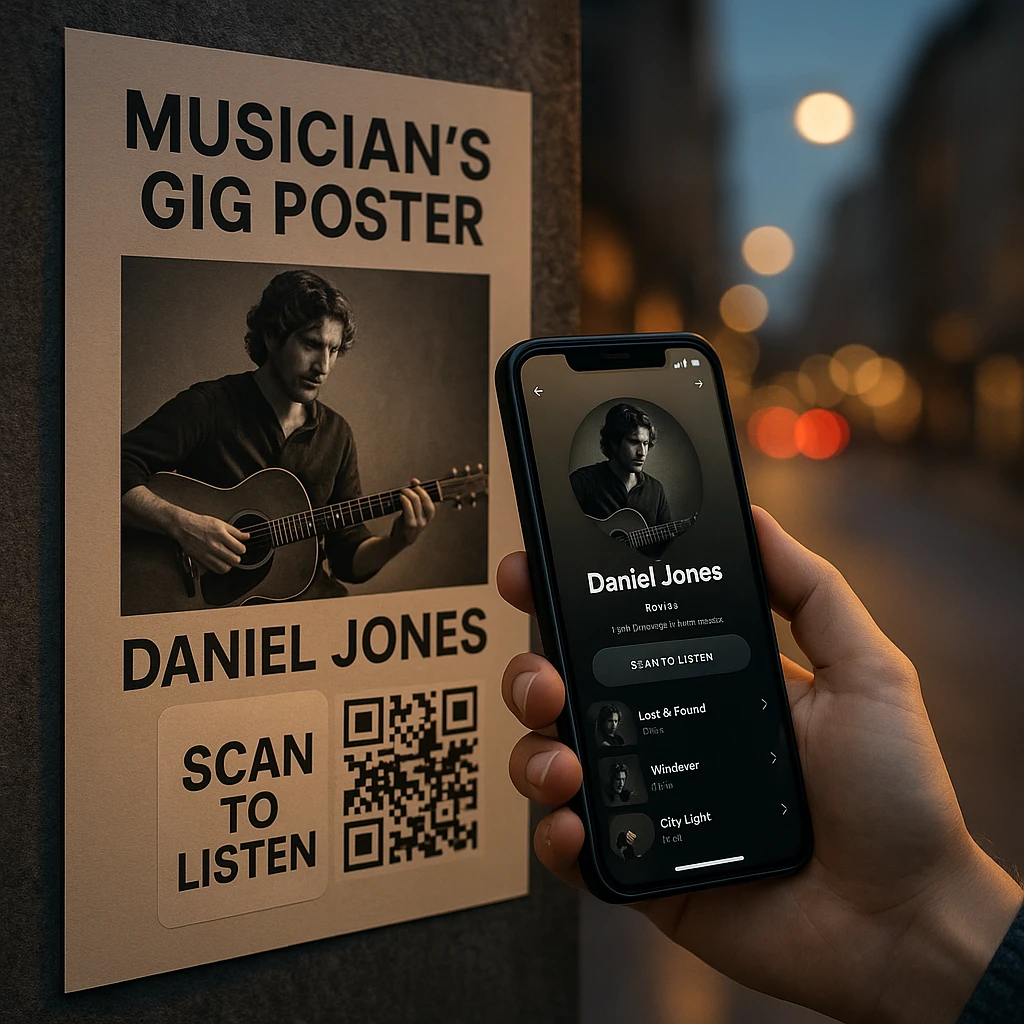
Two minutes of work, and it turns a wedding invitation, a gig poster, or a birthday card into something that plays music. The details that decide whether it works on the day are the ones this guide dwells on: which link to copy, what the scan actually opens (app or browser), how a standard QR code differs from Spotify’s own scannable Codes, and why you should test the printed card before ordering a hundred of them.
Quick answer
About 2 minutesThe QR code stores your Spotify share link, and the scan opens that link on the listener's phone.
Works for songs, playlists, albums, artist pages, podcasts, and episodes; anything Spotify gives a share link.
Related guides: the full walkthrough on turning any video into a QR code (print sizes, static vs dynamic, troubleshooting in depth), plus our Spotify downloaders comparison and podcast transcript tools if you work with Spotify content beyond sharing it.
How to Turn a Spotify Song Into a QR Code
Open the song and copy its share link
In the Spotify mobile app, desktop app, or web player: open the exact track, tap the three-dot menu, choose Share, then Copy song link. You get a URL like open.spotify.com/track/... and that URL is the entire raw material for this project.
Copy from the exact thing you want to open. The most common mistake in this whole workflow is grabbing the artist page or the album when you meant one song, and nobody notices until the printed card opens the wrong destination. Also worth trimming: everything from the question mark onward (the ?si=... tracking part) is optional, and a shorter link makes a sparser code that scans more reliably at small print sizes.
Paste the link into the generator
Open the QR code generator, paste the Spotify URL, and generate. No account is needed, and the code is static: it encodes your link directly, with no scan limits and no expiry to manage. Error correction at M is right for most uses; switch to H if the code is going on anything that gets handled, folded, or scuffed.
Download PNG or SVG
PNG for anything on a screen: Instagram stories, digital invitations, emails, slides. SVG for anything printed, because it scales from a place card to a venue poster without going blurry. If a print shop is involved, they want the SVG; sending a small PNG to a printer is how sharp codes become soft grey smudges.
Scan it like a guest would
Test with an iPhone and an Android, and at least once on a phone without the Spotify app installed, because that is the experience some of your guests will get (the link opens in a browser instead). If the code is going to print, scan the actual printed sample before the bulk order. A code that reads fine from your monitor can fail from textured cardstock under warm reception lighting.
The Same Trick Works for Playlists, Albums, Artists, and Podcasts
The workflow above never changes; only the link you copy does. A few specifics per type:
Playlists are the most-printed Spotify QR code by far: wedding playlists, party soundtracks, cafe and gym music, collaborative event playlists guests can add to. Copy the playlist’s share link the same way, and check one extra thing: the playlist must be public (or set so anyone with the link can view it), and you test that by opening the link in a private browser window where you are not logged in. A private playlist behind a QR code is the Spotify version of a locked door with a welcome mat.
Albums work when you want the full record rather than one track, which suits album-launch posters and merch. Artist pages are the musician’s move: one code on a business card, poster, or press kit that lands people on your profile with everything in one place, follow button included. Podcasts come in two flavors, and the difference matters: the show’s main link (for growing subscribers) versus a single episode link (for promoting this week’s interview). Copy the one that matches the goal; a poster that says “listen to our interview with X” should not land on a generic show page.
What Actually Happens When Someone Scans It
The phone camera reads the code and opens your Spotify URL. If the Spotify app is installed, the link typically hands off to the app and lands directly on the track, ready to play. Without the app, it opens in the browser, where the visitor can preview and is nudged toward signing in or getting the app.
Two things follow from that. First, the QR code does not contain or play the song itself; it stores the address of the song’s page (a standard QR code physically cannot hold audio, the same capacity reality covered in our video QR code guide). Second, what the scanner hears depends on their Spotify situation: free accounts, regional catalog differences, and logged-out browsers all shape the experience. The code delivers people to the door; Spotify decides what plays behind it.
Spotify QR Code vs Spotify Code: Which One Do You Want?
There are two scannable things here, and mixing them up causes most of the confusion around this topic.
A standard QR code (what this guide makes) is the familiar square pattern encoding your Spotify URL. Any phone camera scans it, no special app needed, and you control the file: PNG or SVG, sized for anything from a place card to a banner.
A Spotify Code is Spotify’s own scannable design: the sound-wave-style bars you see under the album art in the app’s share sheet. It is scanned from inside the Spotify app (Search, tap the search bar, hit the camera icon), and higher-resolution versions come from Spotify’s own Spotify Codes site. It looks unmistakably like music, which is its charm, and it assumes the scanner both has Spotify and knows the in-app scanner exists, which is its problem.
| Feature | Standard QR code | Spotify Code |
|---|---|---|
| Scanned with | Any phone camera | The Spotify app's scanner only |
| Appearance | Familiar square pattern | Branded sound-wave bars |
| File control | PNG and SVG, any size, optional logo | Spotify's format and rules |
| Best for | Print, invitations, mixed audiences | Spotify-native, music-branded designs |
The decision rule: for anything printed for a general audience (invitations, posters, cards, packaging), use the standard QR code, because every guest’s camera app knows what to do with it. Use a Spotify Code when the audience is Spotify-native and the music-branded look is part of the design. For a wedding with eighty guests of all ages, the square wins; grandparents’ phones scan QR codes now, but nobody’s grandparent knows Spotify has a hidden scanner behind the search bar.
Making It Look Good Without Breaking the Scan
The design rules are short and they are all about contrast and space. Dark code on a light background; Spotify’s green on white works if the green is dark enough, but black on white never fails. Keep the white border (the quiet zone) intact, and never sit the code on top of album artwork; put the artwork next to it instead. The layout that works on nearly everything, from a wedding table card to a gig flyer: artwork or photo, song title and artist, the QR code, and a plain call to action like “Scan to listen on Spotify.”
That last line matters more than any styling. A bare code is a mystery box; “Scan to hear our first dance” gets scanned. And if you add a logo to the code’s center, keep it small, clear of the three corner squares, and let error correction rise to compensate (the generator handles that automatically when a logo is added). Then test the finished export, not the preview.
For Canva users: generate the QR code first, download the SVG, and drop it into your Canva design like any image. Canva has its own URL-to-QR element too, which is fine for a quick one-off inside a single design; the separate-file route gives you error-correction control and one asset you can reuse across the invitation, the program, and the thank-you cards without regenerating.
Can You Change the Song After Printing?
With the standard static code from this guide, no: the song’s URL is baked into the pattern, so a new song means a new code. That is fine (good, even) for invitations, cards, and gifts where the song is the point and permanence is a feature.
For destinations that will change (a monthly venue playlist, a rotating promo), either use a dynamic QR service, accepting that the code now depends on that provider staying in business, or the sturdier move: point a static code at a simple page you control and swap the Spotify embed on that page whenever you like. The full trade-off, including where dynamic codes quietly fail, is covered in the static vs dynamic section of our QR guide; the short version is that anything printed to last years should not depend on a subscription.
One reassurance for the wedding-invitation case: the printed pattern itself never expires. The only way the code dies is if the destination does, and a Spotify track link is about as stable as URLs get. A collaborative playlist a cousin might delete is the riskier destination; for keepsakes, link the song, not the playlist.
Why Is My Spotify QR Code Not Working?
Same split as any QR problem: is the scan failing, or is the destination failing?
If the phone cannot read the code at all, it is physical: printed too small, low contrast, missing quiet zone, a logo covering a corner marker, glossy paper bouncing light, or a small PNG stretched until blurry. Regenerate from the SVG at the right size and simplify.
If it scans but the wrong thing opens, you copied the wrong link (artist instead of track, album instead of song); recopy from the exact content. If it scans and Spotify shows nothing or an error, check whether the track is still on Spotify (catalog removals happen), whether it is available in the scanner’s region, and, for playlists, whether the playlist is actually public. And if someone says “it just opened my browser, not the app,” that is normal for phones without Spotify installed; the browser page still lets them listen or install.
One more, specific to this topic: if you printed a Spotify Code (the sound-wave bars) and people say their camera does nothing, that is expected. Camera apps read QR squares; Spotify Codes need the scanner inside the Spotify app. Print a caption telling people which kind they are looking at.
Print It Like You Mean It
The 60-second version of print discipline, tuned for the Spotify use cases: roughly 3 cm square minimum on cards and invitations, bigger on posters, always from the SVG. Avoid folds, mug curves, and reflective lamination. Put the code where thumbs will not wear it. Test the actual printed proof with two phones before the full order, especially for one-shot items like wedding stationery where a reprint has a deadline attached. The deeper sizing math (why longer URLs need physically bigger codes) is in the video QR guide’s printing section, and it applies to Spotify links unchanged.
Create your Spotify QR code
ScreenAppCopy the share link for your song, playlist, album, artist page, or podcast, paste it into the ScreenApp QR code generator, and download the code as a 1024px PNG or print-ready SVG. No signup to generate, static codes with no scan limits or expiry, and logo support with error correction handled for you.
Frequently Asked Questions (FAQ)
Can I turn a Spotify song into a QR code?
Yes. Copy the song’s share link from the three-dot menu, paste it into a QR code generator, download the image, and test the scan. The code opens the track’s Spotify page; the same process covers playlists, albums, artists, and podcasts.
How do I get the link for a Spotify song?
Open the track in the app, desktop client, or web player, tap the three-dot menu, choose Share, then Copy song link. Trim the ?si= tracking tail if you want a shorter link, which also makes a cleaner-scanning code.
Can I make a QR code for a Spotify playlist?
Yes, same workflow with the playlist’s share link. One extra check: the playlist must be public or link-visible, and you verify that by opening the link in a private browser window where you are logged out. Private playlists show scanners nothing.
Does Spotify have its own QR codes?
Spotify has Spotify Codes, the sound-wave-style bars under the artwork in the share sheet, scannable through the camera inside the Spotify app’s search bar. They are a different format from standard QR codes and cannot be read by a normal camera app.
What is the difference between a Spotify Code and a QR code?
A standard QR code holds your Spotify URL and scans with any phone camera. A Spotify Code uses Spotify’s own visual format and needs the in-app scanner. For general audiences and print, the standard QR code wins because nobody needs instructions to scan it.
Can a QR code play the song directly?
No; the code stores the link, not audio. Scanning opens the song’s Spotify page, and playback happens there, in the app or browser, subject to the listener’s account and region. No QR code physically holds a music file.
Can someone without Spotify scan it?
The scan itself works on any phone; the link then opens in a browser rather than the app, with a preview and prompts to sign up or install. The full listening experience depends on Spotify, not on the code.
Does a Spotify QR code expire?
The printed pattern never expires. The destination can: a removed track, a deleted playlist, or a region restriction breaks the experience while the code still scans. For keepsakes, link a track rather than a deletable playlist.
Can I change the song after printing?
Not with a static code that encodes the track URL directly. If the destination needs to change, point the code at a page you control and swap the embed there, or use a dynamic QR service and accept the dependency on its provider.
PNG or SVG for my wedding invitations?
SVG, always, for anything a printer touches; it stays sharp at any size. PNG is for screens: digital invites, stories, emails. Most scan failures on printed cards trace back to a small PNG scaled up until the modules blurred.
Can I make a Spotify QR code in Canva?
Yes, two ways: generate the code first and upload the SVG into your design (more control, reusable asset), or use Canva’s built-in QR element with the Spotify URL (faster for a one-off). Either way, test the exported design, not just the on-screen preview.
The whole trick, start to finish: copy the exact link, encode it, download the SVG, and scan the printed proof with somebody else’s phone. Do those four things and the code on the invitation will still play your song years from now. The generator is free when you are ready.
FAQ
Can I turn a Spotify song into a QR code?
Yes. Copy the song's share link from the three-dot menu, paste it into a QR code generator, download the image, and test the scan. The code opens the track's Spotify page; the same process covers playlists, albums, artists, and podcasts.
How do I get the link for a Spotify song?
Open the track in the app, desktop client, or web player, tap the three-dot menu, choose Share, then Copy song link. Trim the ?si= tracking tail if you want a shorter link, which also makes a cleaner-scanning code.
Can I make a QR code for a Spotify playlist?
Yes, same workflow with the playlist's share link. One extra check: the playlist must be public or link-visible, and you verify that by opening the link in a private browser window where you are logged out. Private playlists show scanners nothing.
Does Spotify have its own QR codes?
Spotify has Spotify Codes, the sound-wave-style bars under the artwork in the share sheet, scannable through the camera inside the Spotify app's search bar. They are a different format from standard QR codes and cannot be read by a normal camera app.
What is the difference between a Spotify Code and a QR code?
A standard QR code holds your Spotify URL and scans with any phone camera. A Spotify Code uses Spotify's own visual format and needs the in-app scanner. For general audiences and print, the standard QR code wins because nobody needs instructions to scan it.
Can a QR code play the song directly?
No; the code stores the link, not audio. Scanning opens the song's Spotify page, and playback happens there, in the app or browser, subject to the listener's account and region. No QR code physically holds a music file.
Can someone without Spotify scan it?
The scan itself works on any phone; the link then opens in a browser rather than the app, with a preview and prompts to sign up or install. The full listening experience depends on Spotify, not on the code.
Does a Spotify QR code expire?
The printed pattern never expires. The destination can: a removed track, a deleted playlist, or a region restriction breaks the experience while the code still scans. For keepsakes, link a track rather than a deletable playlist.
Can I change the song after printing?
Not with a static code that encodes the track URL directly. If the destination needs to change, point the code at a page you control and swap the embed there, or use a dynamic QR service and accept the dependency on its provider.
PNG or SVG for my wedding invitations?
SVG, always, for anything a printer touches; it stays sharp at any size. PNG is for screens: digital invites, stories, emails. Most scan failures on printed cards trace back to a small PNG scaled up until the modules blurred.
Can I make a Spotify QR code in Canva?
Yes, two ways: generate the code first and upload the SVG into your design (more control, reusable asset), or use Canva's built-in QR element with the Spotify URL (faster for a one-off). Either way, test the exported design, not just the on-screen preview. The whole trick, start to finish: copy the exact link, encode it, download the SVG, and scan the printed proof with somebody else's phone. Do those four things and the code on the invitation will still play your song years from now. The genera