YouTube Video Cutter and Downloader: 10 Tools Tested (and Which Are Safe)

On this page
Most people searching for a yt cutter want one specific thing: grab 40 seconds out of a 20-minute video, without downloading the whole thing and without installing anything.
That is a reasonable ask, and the category serves it badly. The tools that do it well are boring. The ones that market hardest are the ones you should be most careful with, and a lot of the traffic on this topic is people typing “is cutter.yt safe” into Google at 11pm, which tells you everything about the state of it.
So this covers two things. Which YouTube video cutters actually work, and which of the popular ones are worth trusting with a click.
Are cutter.yt, ytcutter.com and youtubetrimmer.com safe?
This is the question people actually ask, so it goes first rather than buried under a listicle.
None of these are malware in the “your laptop is now mining crypto” sense, as far as we can tell. The risk is duller and more real: they are ad-funded, which means the download button is competing with three fake download buttons, and at least one of those leads to an installer you did not want. The pattern is always the same. You click, a new tab opens, something offers to “optimise” your PC. That is the business model, not an accident.
What to actually watch for on any of them:
- The page opens tabs you did not ask for. Close it.
- It wants you to install an extension or a “helper” first. Never necessary for trimming a video.
- It asks you to sign in with Google. No cutter needs your YouTube account.
- The output is a
.exerather than an.mp4. Obviously.
Use an ad blocker, do not click anything that is not the actual button, and you will be fine. That is a low bar and it is genuinely the honest answer for most of this category.
Why cut a YouTube video at all
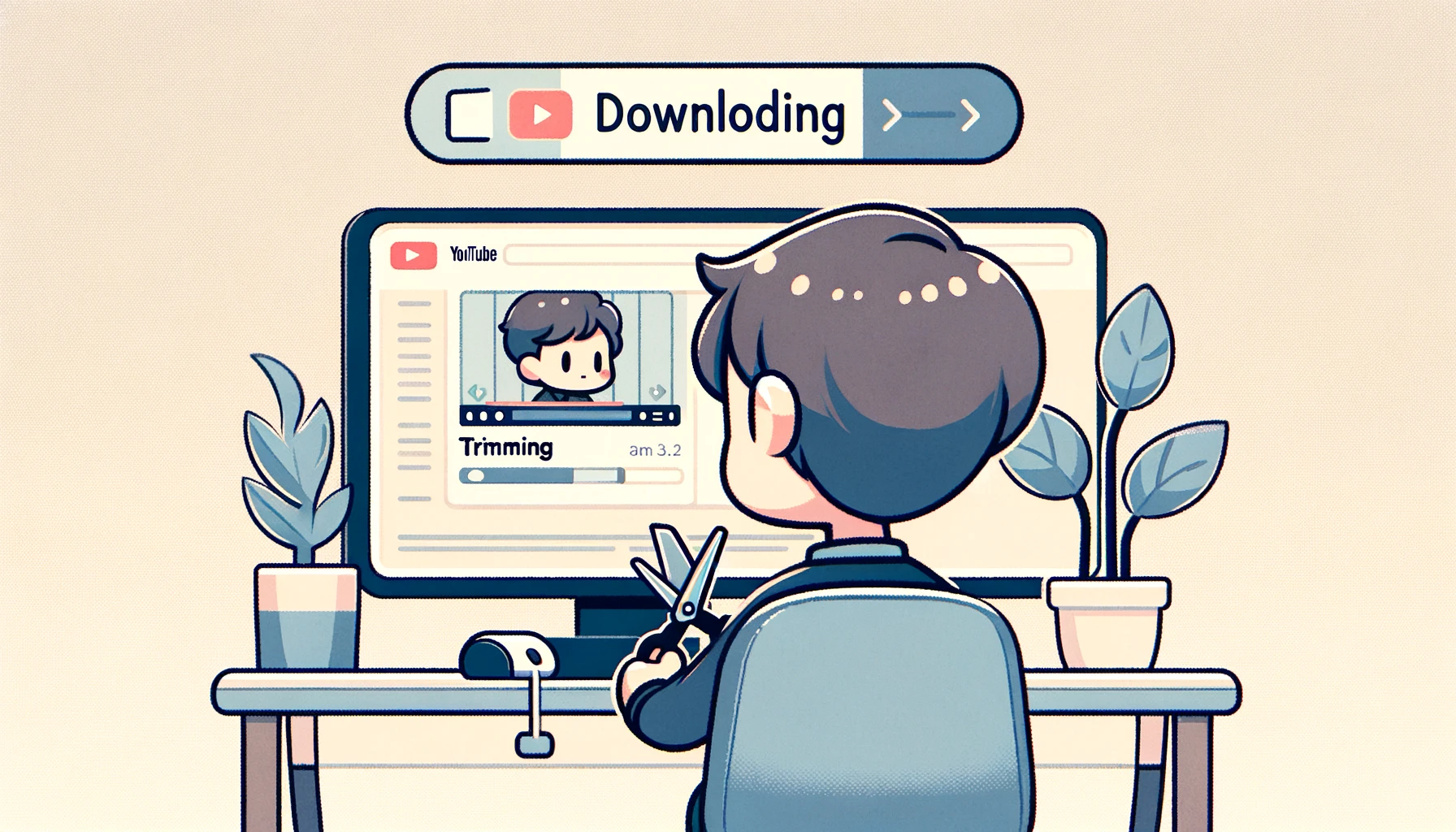
Every day, content creators, educators, marketers, and even casual users find themselves in situations where they need to cut a video. For instance, you might want to trim unnecessary footage from the start or end of your video, cut out unwanted segments, or extract key parts from a long video for sharing or repurposing. This is where a YouTube video cutter comes into play, offering a precise tool for making these edits.
In addition, having a downloading feature integrated in the same platform provides an extra layer of convenience. For instance, if you’re a teacher preparing for a class, you might find a relevant educational clip in a longer YouTube video. By using a tool that cuts and downloads the video, you can easily save this specific part and share it with your students without the distraction of unrelated content.
What actually matters when picking one
Two questions decide this, and the rest is noise.
Does it give you a file, or a link? Half the popular tools only produce a URL to a trimmed section. Fine for showing someone a moment, useless if you need an MP4 in a slide deck. Check this first, because every other feature is irrelevant if the output is wrong.
Does it re-encode? Most web cutters decode and re-encode, which costs you a little quality every pass. For one clip nobody will notice. If you are cutting the same footage repeatedly, that loss stacks, and you want a lossless cutter instead.
After that: speed matters less than people think (you are cutting one clip, not a hundred), and price mostly sorts itself out because the good simple options are free and the paid ones are editors you would be buying for other reasons anyway.
The ten tools, grouped by what they actually are
The listicles in this category all pretend these are ten versions of the same thing. They are not. They fall into three groups, and picking the wrong group is why people end up frustrated.
The ones that take a YouTube URL and give you a file
This is what most people want, and only a few tools do it.
ScreenApp’s web-based trimmer and downloader take the URL, let you set start and end points, and hand back an MP4 or MP3. No account needed to start. It is deliberately not an editor: there are no transitions, no filters, and if you want those you are in the wrong group. It also happens to Record Youtube Live Streams, which is a different job but the same tab.
YT Cutter does the same thing and has done for years. Paste, pick your in and out points, choose MP4 or MKV and a quality. It is slower than it should be on long videos, and the interface has not changed since roughly forever, but it works and it does not ask for anything. Between this and ScreenApp for a single clip, the honest answer is that it does not matter much which you use.
The ones that give you a link, not a file
Two tools here look like the group above and are not, which is the single most common trap on this topic.
Hashcut clips straight from a YouTube URL and lets you drop captions, stickers, and a soundtrack on top. Genuinely fun. But your clip lives on Hashcut as a link. There is no download. If you needed a file for a presentation, you have wasted your time.
YouTube Trimmer is the same deal, stripped back to nothing. Paste a URL, set two timestamps, get a shareable link to that section. That is the entire product. For “watch this bit, not the whole video” sent to a colleague, it is perfect and takes ten seconds. For anything else, it is useless. I have a soft spot for how honest it is about being one thing.
The ones that are real editors you upload to
These are not YouTube cutters. They are video editors that can also trim, and you generally bring your own file.
Kapwing is the strongest of them. Trimming, subtitles, transitions, collages, and workspaces if more than one person touches the video. The free tier does not stamp a watermark on your output, which is rarer than it should be and the main reason it wins this group. File size limits bite on the free plan.
Clideo covers a similar spread, trim and merge and resize and subtitles, and saves straight to Google Drive or Dropbox. The free ceiling is 500 MB, which sounds generous until you feed it anything long. It can be slow.
Typito is for videos where the text is the point. Animated titles, captions, overlays, publish to social. If you caption tutorials for a living it earns its place. The free tier watermarks, so treat it as a trial rather than a plan.
Flixier is the most capable and the least beginner-friendly. Cloud rendering makes exports fast, real-time collaboration works, and the feature set goes well past cutting. Expect to spend an afternoon learning it. Worth it if video is your job, overkill if you needed 40 seconds out of a lecture.
The desktop two
iMovie is free on any Mac, iPad, or iPhone you already own, handles 4K, and is the easiest way in if you are already in that ecosystem. It is also Apple-only, and a working editor will hit its ceiling quickly.
Joyoshare VidiKit trims losslessly, which is its actual argument: no re-encode, no generation loss. It converts, records, and compresses too. It costs money and there is no free tier, only a trial. If you cut video often enough to care about lossless, you know who you are. Everyone else should not install it.
How to Use a YouTube Video Cutter and Downloader
Let’s illustrate a basic step-by-step tutorial using YT Cutter, one of the simplest tools:
-
Go to the YT Cutter website.
-
Copy the URL of the YouTube video you want to cut and paste it into the field on YT Cutter’s homepage.
-
Click the “Start” button to load your video.
-
Once the video is loaded, select the start and end points of your cut by moving the sliders below the video preview.
-
Click “Cut” to process your video.
-
After processing, you can preview your cut and choose the format for downloading.
-
Click “Download” to save your trimmed video to your device.
Advanced Features in YouTube Video Cutters and Downloaders
Unique Features
While basic cutting and trimming are essential, many YouTube video cutters offer advanced features that can significantly enhance the quality of your content. These features include:
-
Batch Editing: Tools like Shotcut and Flixier allow you to edit multiple videos simultaneously, significantly speeding up the editing process.
-
Filters and Transitions: Tools like Kapwing, iMovie, and Flixier provide various filters and transitions that can add a professional touch to your videos
-
Subtitles/Captions: Platforms like Kapwing and Typito allow you to add subtitles or captions to your videos, enhancing accessibility and engagement.
Value of Advanced Features
These advanced features can add significant value to your content. For example, filters and transitions can make your videos more visually appealing, helping to retain viewer interest. Subtitles not only make your videos accessible to a broader audience but also increase viewer engagement, especially on platforms where videos are auto-played on mute. Batch editing, on the other hand, can save valuable time, particularly when working with a large number of videos.
Choosing a tool that offers these advanced features can, therefore, help you create more engaging and professional-looking videos, potentially increasing your viewer engagement and reach.
Common Pitfalls to Avoid while Using YouTube Video Cutters
Potential Issues
- Video Quality Loss: Some tools may compromise the video’s original quality during the cutting and downloading process. Use a tool that keeps the resolution, especially when working with HD and 4K videos.
- Copyright Infringement: Keep in mind that not all content on YouTube is free to use. Always respect copyright laws and only edit and share content that you have the right to use or that falls under fair use.
- Malware Threats: Some video cutter tools, especially free or less-known ones, might carry risks of malware. It’s essential to use reliable, well-reviewed tools to avoid infecting your device.
Avoiding Pitfalls
- To avoid quality loss, opt for tools that support lossless editing or have high ratings for output quality.
- Stay informed about copyright laws in your country, and when in doubt, seek permission before using someone else’s content.
- To mitigate malware threats, use tools from reputable sources, and consider investing in good antivirus software for your device. Cybernews’ TotalAV Antivirus review offers an in-depth analysis to help you choose a reliable security solution.
Review of the Customer Support and Community for Each Tool
Good customer support and an active user community can significantly enhance your experience with a tool. Most tools offer some form of customer support, whether via email, chat, or a knowledge base on their website. Some, like Flixier and Kapwing, also offer a collaborative workspace where you can connect with other users.
Community forums, FAQs, and tutorial sections can be invaluable resources for learning to navigate a new tool. In our list, platforms like Shotcut and Kapwing have active forums and extensive resources, making it easier for users to learn and troubleshoot independently.
Impact of YouTube Video Cutters on Content Creation
Streamlining the Process
YouTube video cutters and downloaders can significantly streamline your content creation workflow. By providing easy access to cutting, trimming, and downloading functionalities, these tools eliminate the need for multiple software, thereby saving time and effort.
Impact on Content Output and Quality
And with the ability to quickly edit and tailor your content, you can ensure your videos align with your audience’s preferences, thereby enhancing viewer engagement. Advanced features like filters, transitions, and text overlays can further improve the quality and professional look of your videos, setting your content apart in a competitive space like YouTube.
Case Studies of Successful Use of YouTube Video Cutters
Success Stories:
- Educational Channels: A prominent education-focused YouTube channel, Crash Course, has effectively utilized video-cutting tools to repurpose long-form content into shorter clips suitable for social media. This strategy has allowed them to reach a broader audience and maximize the use of their content.
- Small Businesses: Many small businesses use video cutters to transform their product demos or customer testimonials on YouTube into engaging social media content. For instance, a homemade crafts business effectively used Kapwing to cut and edit their YouTube tutorials into bite-sized Instagram posts, boosting their engagement and followers on the platform. To accelerate their growth even further, they explored options to get Instagram followers, ensuring their content reached a larger audience quickly and amplified their brand’s visibility.
Lessons Learned:
The success of these examples lies in understanding the audience’s needs on different platforms. Repurposing content can save time and resources while allowing you to tailor content to different platforms and audiences. Advanced features of these tools can enhance the visual appeal of your videos, increasing viewer engagement.
Looking Towards the Future
Trends and Predictions
Artificial Intelligence and Machine Learning are increasingly being incorporated into video editing software, paving the way for smarter, more automated tools. We can expect future tools to offer features like automatic editing, where the software identifies and compiles highlights, or smart cropping, where the software optimizes the video frame based on the subject’s movement.
Impact on Users
These innovations could make video editing even more accessible and efficient. YouTube content creators could benefit from more advanced and automated features, helping them create high-quality content with less effort. For general users, smarter tools mean easier navigation and quicker learning curves, opening up the realm of video editing to a broader audience.
Reader’s Interaction Section
We invite our readers to join the discussion and share their experiences. Have you used any of the YouTube video cutters and downloaders we reviewed? What’s your go-to tool, and why? Do you have any tips or tricks that could benefit others in our community? Share your thoughts and insights in the comment section below.
Your experiences and recommendations can help others make more informed decisions and discover new tools or features, fostering a collaborative learning environment.
Finding the cut without scrubbing for it
Here is the part that actually wastes your afternoon. Not the cutting. The finding. Dragging the scrubber back and forth hunting for the moment someone said the thing, at roughly 14:30, or was it 41:30.
Read the video instead of scrubbing it. Pull the transcript, search the text, note the timestamp, then cut once. Where the video already publishes captions, ScreenApp reads that caption track straight from YouTube rather than transcribing the audio, and the text is there in about 15 seconds: median 14.7 seconds across 1,774 production imports in July 2026, nine in ten inside 29 seconds. Videos without captions take the AI transcription route and longer.
Two honest notes. Caption text is YouTube’s own, so our published word error rates describe the AI route rather than that one, which is fine when you are hunting a timestamp and not quoting anyone. And this only helps for videos where someone is talking. For a music video or a gameplay clip, scrub away, the transcript has nothing for you.
So which one
For a quick trim with nothing installed, ScreenApp’s trimmer or YT Cutter both do it, and honestly the difference between them for a single clip is nothing worth writing about.
Kapwing if you also need subtitles or a bit of real editing after the cut. Shotcut if you are doing this often enough to justify learning an actual editor, which is a bigger commitment than the listicles admit.
And whichever site you land on, block the ads first.
Best Youtube Video Cutters related FAQs
What is the best YouTube video cutter and downloader?
The best YouTube video cutter and downloader depends on your specific needs and skill level. For advanced features and versatility, Shotcut and Kapwing are great options. For simplicity and ease of use, consider YT Cutter or YT Cropper.
Are YouTube video cutters and downloaders free?
Many YouTube video cutters and downloaders offer free versions, such as Shotcut, YT Cutter, and iMovie. However, some may limit certain features in the free version and require a paid plan for full functionality.
How can I cut a YouTube video online for free?
Tools like YT Cutter and YT Cropper allow you to cut YouTube videos online for free. Simply paste the YouTube video’s URL into the tool, select your desired start and end points, and process the video.
How can YouTube video cutters enhance my content creation workflow?
YouTube video cutters can streamline your content creation workflow by providing easy and efficient video editing capabilities. This allows you to tailor your content to your audience’s preferences, enhance viewer engagement, and save time and effort in the editing process.
Are there any potential issues to be aware of when using YouTube video cutters and downloaders?
Potential issues when using these tools include video quality loss, copyright infringement, and malware threats. To avoid these pitfalls, opt for high-quality tools, always respect copyright laws, and use tools from reputable sources.
Can I use a YouTube video cutter on any device?
Many YouTube video cutters and downloaders are platform-independent and can be used on any device with an internet connection. Some, like iMovie, are specific to macOS and iOS devices. Always check the tool’s compatibility with your device before starting.
Do YouTube video cutters and downloaders also offer other editing features?
Yes, many YouTube video cutters also provide additional editing features such as adding filters, transitions, text overlays, and even soundtracks. Tools like Kapwing, Shotcut, and Flixier are renowned for their extensive editing suites.
Is it legal to cut and download YouTube videos?
It’s legal to cut and download YouTube videos for personal use or if you have explicit permission from the copyright holder. However, unauthorized copying or distribution of copyrighted material, such as YouTube videos, can lead to severe penalties.
What advanced features can I expect in YouTube video cutters and downloaders?
Advanced features in YouTube video cutters include batch editing, adding filters or subtitles, lossless quality cutting, and collaborative editing. These features can greatly enhance your content creation process.
What future innovations can we expect in video cutting and downloading technology?
Future innovations in video cutting and downloading technology may include AI-powered editing for smart cropping and automatic editing, cloud-based collaboration, and more streamlined, user-friendly interfaces.
FAQ
What is the best YouTube video cutter and downloader?
The best YouTube video cutter and downloader depends on your specific needs and skill level. For advanced features and versatility, Shotcut and Kapwing are great options. For simplicity and ease of use, consider YT Cutter or YT Cropper. #### Are YouTube video cutters and downloaders free? Many YouTube video cutters and downloaders offer free versions, such as Shotcut, YT Cutter, and iMovie. However, some may limit certain features in the free version and require a paid plan for full functionalit