Image to Video AI Free: Turn Any Photo Into a Video Online

On this page
Quick Answer: Which Image to Video AI Is Free?
Every free tier here trades something away. Pick by what you can live without:
- Best free quality: Kling 3.0 (credits refresh daily, but free exports are branded)
- Best free with no watermark: Pika (small monthly credit pool, lower resolution)
- Most free clips per day: Hailuo by MiniMax (signup credit bundle plus a daily allowance)
- Best free 1080p: Seedance 2.0 through Dreamina (shared daily credits, queue can be slow)
- Best cinematic motion: Luma Dream Machine (free clips carry a permanent watermark)
- No AI at all, just a slow zoom: Kapwing or Image Pan Zoom in the browser
Free credits and watermark rules on these tools changed at least twice in the first half of 2026. The numbers below were checked in July 2026, so open the pricing page before you plan a project around a free tier.
Two completely different things get called “photo to video,” and mixing them up is why so many people bounce off the first tool they try.
One is generative animation. You give a model a single still and it invents motion that was never in the frame: the subject breathes, the camera drifts, clouds move. The other is a Ken Burns converter, which glides a slow pan and zoom across your real photo and invents nothing. Both are useful. The free versions live in completely different places, and the second kind is what a lot of people searching for a free image to video AI actually need.
Here is the part the roundups skip. ChatGPT cannot do this job. It will happily generate a new image, but it has no image-to-video model wired into the chat window, so it cannot take the photo on your desktop and hand you back an MP4 with motion in it. That is why you end up on a page like this one.
The other thing worth knowing before you start: “no watermark” and “unlabelled” are not the same thing. Google embeds an invisible SynthID signature in output from its video models, and the C2PA content-credentials standard is now shipping inside mainstream creative tools, so most AI clips carry provenance metadata even when the corner logo is gone. If you are animating a product shot for a client, assume it can be detected as AI-generated.
This guide ranks 11 image to video AI tools by what the free tier genuinely gets you, then covers the pan-and-zoom converters separately. If you would rather start from a written script than a photo, our guide to free text-to-video generators covers that path, and the roundup of AI tools for video production goes wider than animating one still.
How We Ranked Them
We build recording and transcription software, not a generative video model, so this is an editorial comparison rather than a lab benchmark. It is based on each tool’s current model, what the free tier allows in July 2026, and how each one behaves on a single-photo animation. Five things decided the order:
- What the free tier actually produces. Not the credit number on the pricing page. Whether you can publish the export without a logo across it, and at what resolution.
- Motion quality. Believable movement, or a melting face and a warping background. Faces are the hard test.
- Control. Whether you can steer camera motion, strength, and duration, or just press go and hope.
- Speed. Generation time matters more than it sounds, because you will run the same photo three or four times before you like one.
- How long the clip holds together. Most models lose the subject somewhere after five seconds. A few do not.
Scores in the cards below are our editorial read, not a benchmark result.
Image to Video AI Compared
Eleven photo to video conversion AI platforms, sorted by how usable the free tier is rather than by raw model quality. Free limits and watermark rules checked July 2026.
| Rank | Tool | Free tier | Watermark on free | Free quality | Best for |
|---|---|---|---|---|---|
| 1 | Kling AI | Daily credit refresh | Yes | 1080p | Best free motion, longest clips |
| 2 | Pika Labs | Monthly credit pool | No | 720p | Clean exports, fast loops |
| 3 | Hailuo AI | Signup bundle plus daily | Yes | 768p | Most free attempts per day |
| 4 | Luma AI | Monthly generation cap | Yes | 720p | Cinematic camera moves |
| 5 | Runway Gen-4.5 | One-time credits only | Yes | 720p | Directing the shot precisely |
| 6 | Seedance 2.0 | Shared daily credits | Varies | 1080p | Vertical clips for Reels |
| 7 | CapCut | Free app, paid AI extras | No | 1080p | Animating photos on a phone |
| 8 | Canva | Free plan, no card | No | 1080p | Slideshows and simple motion |
| 9 | YouCam Video | Free credits, paid styles | Yes | 720p | Selfies and portrait effects |
| 10 | InVideo AI | Weekly cap, watermarked | Yes | 720p | Photos inside a longer video |
| 11 | DomoAI | Free credits on signup | Yes | 720p | Anime and illustrated art |
One pattern worth noticing in that table: the tools with the best motion are the ones that brand your free export, and the tools that let you export clean are the ones with weaker models. That is not a coincidence. Rendering video is expensive, so the watermark is the price of the good model. If a clean export matters more than the last ten percent of realism, start at rank 2 or 6 and skip the top of the list.
When Motion Actually Helps
A reality check before you animate everything in your camera roll. Video does earn more reach than a still on most feeds, and Wyzowl’s annual video marketing survey has the overwhelming majority of marketers reporting a positive return on video. That part is real.
But a badly animated photo is worse than no animation. The warping face, the hands that grow a finger, the background that slides like wet paint: people scroll past that faster than they scroll past a clean still, and it makes the brand look careless.
The animations that genuinely earn their place are small. A portrait that breathes and blinks. A landscape with clouds drifting and grass moving. A product shot where the camera pushes in slowly to reveal a texture. A slideshow that pans across each photo instead of cutting hard between them.
If you cannot describe in one sentence what the motion adds, leave the photo still.
Faces are the hard test. Every model here can move clouds convincingly. Almost none of them can animate a close-up human face for ten seconds without the identity drifting. If your photo is a portrait, keep the clip under five seconds and keep the requested motion tiny.
The 11 Best Photo to Video AI Generators
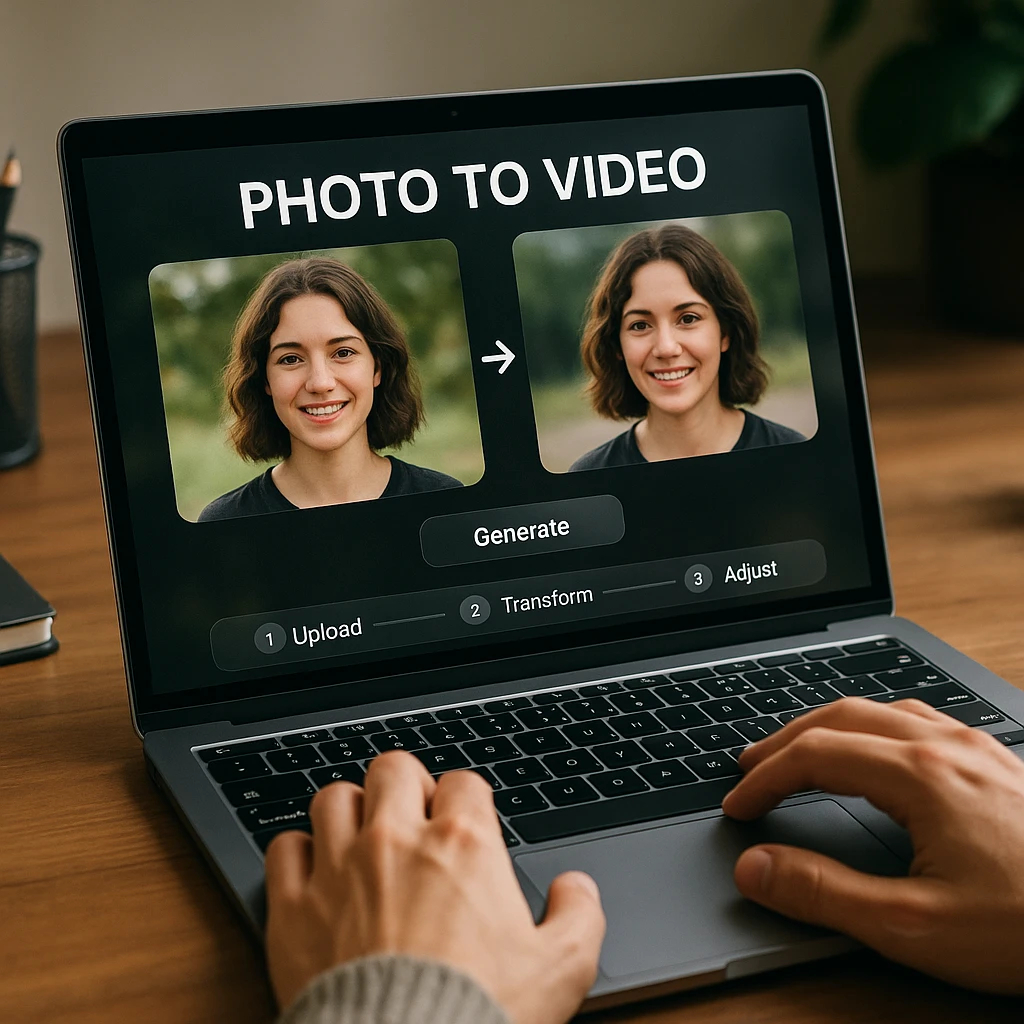
1. Kling AI
Best free image to video AI for believable motion
Kling AI is the one to try first if you want a free image to video result that does not look obviously synthetic. Kling 3.0 is a stable public release with an English interface, and its free credits refresh on a daily cycle rather than running out once and leaving you stuck at a paywall. Where it separates itself is duration: most models start losing the subject after four or five seconds, and Kling holds a face together across ten without it turning into a different person.
It also copes with busy frames better than the rest. Give it a street scene or a group photo and the separate elements keep moving independently instead of smearing into one blob. The catch is the watermark. Free exports carry Kling branding, and reports on the exact daily credit figure vary between regions, so check what your account shows rather than trusting a number in a listicle. Each 1080p generation eats a decent chunk of the daily allowance, which means two or three serious attempts a day, not twenty.
Pros
- -Holds a subject together across 10 seconds
- -Credits refresh daily instead of once
- -1080p available on the free tier
- -Handles crowded frames without smearing
- -Email signup, no card needed
Cons
- -Free exports carry Kling branding
- -1080p burns the daily credits in a few tries
- -Slower than Pika or Hailuo per generation
- -Free use is personal only, not commercial
Best For
Anyone who wants the best free motion quality available and can either crop the watermark or accept it on a personal post.
2. Pika Labs
The only strong free tier with no watermark
Pika Labs is here for one reason that matters more than any spec: free generations come out without a logo stamped on them. In 2026 that is genuinely rare, because nearly every rival either brands your free export or caps it so far below 1080p that it is unusable. Pika gives you a small monthly credit pool (around 80 credits at the time of writing, and a five-second clip costs roughly 12), so budget for about six clips a month rather than unlimited play.
It is also the fastest tool in this list. Most animations land in well under a minute, which changes how you work: you stop agonising over the prompt and just run it four times. The trade-off is honest, and Pika does not hide it. Motion is simpler and resolution is lower than Kling or Luma, so a close-up portrait can look a little rubbery. Where it does win outright is the two-image keyframe mode, where you give it a start photo and an end photo and it invents the transition between them. That is the single most useful free feature nobody talks about.
Pros
- -Free exports have no visible watermark
- -Quickest generations of anything here
- -Keyframe mode animates between two photos
- -Loops cleanly for backgrounds and posts
Cons
- -Around six free clips a month, then you pay
- -Lower resolution than Kling or Seedance
- -Close-up faces can look rubbery
- -Queue slows down at peak hours
Best For
Anyone who needs a clean, publishable clip for free and can work within a handful of generations a month.
3. Hailuo AI
Most free attempts before you hit a paywall
Hailuo AI, built on MiniMax's video model, is the tool to reach for when you do not yet know what motion you want. It hands new accounts a large credit bundle on signup (widely reported at around 1,000 credits, enough for roughly 20 to 30 short clips) and then tops you up daily, so you can afford to be wasteful. That matters more than it sounds. Image to video is guesswork, and the tool that lets you fail ten times teaches you more than the one that gives you two perfect attempts.
Output tops out around 768p on the free tier, so treat it as a drafting tool: find the motion you like here, then spend a Kling or Seedance credit on the final 1080p version. Motion is competent rather than remarkable, and free exports carry branding. It is also the cheapest paid tier of the serious models if you decide to stay, which makes it a low-risk place to learn.
Pros
- -Biggest free allowance for experimenting
- -Daily top-up on top of the signup bundle
- -Quick queue, even at busy times
- -Cheapest paid step-up of the strong models
Cons
- -Free output caps around 768p
- -Branding on free exports
- -Less prompt control than Runway
- -Interface still feels rough in English
Best For
Learning what prompts and motion strengths actually do, without watching a credit counter after every attempt.
4. Luma Dream Machine
Best camera movement, if you can live with the logo
Luma AI and its Dream Machine still produce the most cinematic camera work of anything in this list. The Ray3 model has a real sense of how a lens moves through space, so a landscape gets a drift and a parallax that feels shot rather than generated, and a portrait gets breathing and a blink rather than a jerk. It also preserves the sharpness of the original photo instead of softening everything into a haze, which is where a lot of cheaper models give themselves away.
So why is it at four instead of one? The free tier. You get a monthly generation cap rather than a daily refresh, free clips carry a permanent watermark, and free output is for personal use only. Run out on the 8th of the month and you wait three weeks. For a one-off hero clip that is fine. For learning the tool, it is the wrong economics, which is why Hailuo and Kling sit above it here despite Luma arguably having the better model.
Pros
- -The most convincing camera movement here
- -Keeps the original photo sharp
- -Natural micro-expressions on portraits
- -Strong grasp of depth and parallax
- -Reliable, rarely queued out
Cons
- -Monthly cap, not a daily refresh
- -Permanent watermark on free clips
- -Free output is personal use only
- -Needs a genuinely sharp source photo
Best For
One or two showpiece clips a month where the camera move is the whole point, and for anyone already paying for a plan.
5. Runway Gen-4.5
For directing the shot instead of hoping
Runway Gen-4.5 is the tool for people who already know what shot they want. Its image-to-video mode sits inside a full editing suite, and the prompt system genuinely listens: ask for a slow push in on the subject's eyes, or a parallax reveal of the background, and you mostly get it. That precision is the entire value proposition, and it is completely wasted if you only ever type "make it move."
Treat the free tier as a demo rather than a plan. It is a one-time credit grant with no daily or monthly refresh, so once it is gone the tool is effectively paid. It also has the steepest learning curve here by a wide margin. If you want fine control over a photo animation and you are willing to pay around $12 to $15 a month for it, this is the pick. If you are experimenting, spend your free credits somewhere they replenish. Runway is also the natural next step once you start stitching animated stills into a longer edit with a proper [AI video editor](/features/ai-video-editor).
Pros
- -Best prompt-to-camera-motion accuracy
- -Sits inside a real editing suite
- -Reference images to steer style
- -API for batch workflows
- -Ships model updates constantly
Cons
- -Free credits are one-time, no refresh
- -Steepest learning curve in this list
- -Overkill for a single animated selfie
Best For
Editors and designers who want a specific camera move on a specific photo and will pay for the control to get it.
6. Seedance 2.0
Free 1080p, best for vertical social clips
Seedance 2.0 is ByteDance's video model, and the easiest free route into it is Dreamina, the creative tool that shares an account system with CapCut. The pitch is a genuine 1080p output on a free tier with daily credits, which is a combination almost nobody else offers. Because it comes from the company that runs TikTok, it is tuned for vertical, short, fast-cutting content, and it shows. Animate a photo for a Reel and the framing and pacing tend to come out right without you asking.
Two honest caveats. The free credits are a shared pool that resets daily, so at busy times you queue, and generations can take a while. And reports on whether free Seedance output is watermarked differ depending on which surface you use it through and which region you are in, so check your own export before you build a posting schedule on it. If you want the background on why this model went viral, we covered it in our [Seedance AI video generator breakdown](/blog/seedance-ai-video-generator-viral).
Pros
- -Real 1080p on a free daily allowance
- -Tuned for vertical Reels and Shorts
- -Shares an account with CapCut
- -Strong motion for the price of nothing
Cons
- -Shared credit pool means real queues
- -Watermark rules vary by region and surface
- -Less prompt control than Runway or Kling
- -Access route changes fairly often
Best For
Creators posting vertical clips who want 1080p without paying, and who do not mind waiting in a queue for it.
7. CapCut
Best free photo to video app on a phone
CapCut is the answer for anyone searching for a free photo to video app rather than a generative model. Its photo animation tools are preset-driven rather than prompt-driven, which sounds like a downside until you realise how fast that makes the whole job: shoot a photo, apply a motion preset, add a track, publish to TikTok or Reels, all on the phone in a couple of minutes. Exports are clean and 1080p, which is more than most of the AI generators above will give you for nothing.
Be clear about what you are getting. The presets are a canned pan, zoom, or shake, not invented motion, so a portrait will not blink and clouds will not move. Some of the genuinely AI-powered features sit behind CapCut Pro, and the free effects library is popular enough that a preset can date your video within weeks. Still, for a multi-photo slideshow with music, it beats every generative tool here on effort per result.
Pros
- -Clean 1080p exports at no cost
- -Pan and zoom presets that never warp a face
- -Whole job done on the phone
- -Publishes straight to TikTok and Reels
- -Best option for a multi-photo slideshow
Cons
- -Presets, not generative motion
- -Popular effects date a video quickly
- -The real AI tools need CapCut Pro
Best For
Phone-first creators who want several photos turned into one watchable clip today, with no credits to manage.
8. Canva
Best free browser option for slideshows
Canva gets included because of something the AI tools cannot match: an actually unlimited free plan for basic photo animation, no credits, no card, no watermark. The animation presets are simple pans, zooms, and fades rather than generated motion, and its Magic Animate effects are closer to motion graphics than to a video model. For a testimonial card, a property listing, or a five-photo product slideshow, that is exactly enough.
The other advantage is that it is probably already open in a tab. Animating a photo next to the graphics, captions, and brand fonts you are already using saves more time than a better model would. Do not come here expecting a portrait to blink. Come here when you want three photos, a logo, and a music bed exported as a clean 1080p MP4 in ten minutes.
Pros
- -No credit system to run out of
- -No watermark on free exports
- -Animation sits next to your existing design work
- -Keeps brand fonts and colours consistent
Cons
- -Not a generative video model
- -Presets look like presets
- -Best stock and effects are on Pro
Best For
Small businesses and educators who need a branded photo slideshow with gentle motion and zero cost or credit management.
9. YouCam Video
Best for selfies and portrait effects
YouCam Video comes from Perfect Corp, a company that has spent years on face and beauty technology, and that background shows in what it is good at. Point it at a selfie or a portrait and its animation and enhancement work on faces holds up better than the general-purpose models, which tend to treat a face as just another region of pixels. Dynamic effects, depth, and expression adjustments are packaged as presets you tap rather than prompts you write.
It is narrow by design. This is not the tool for animating a landscape or a product shot, and manual control is limited compared with a desktop editor. Free credits get you a taste, the better motion styles sit behind a subscription, and free exports are branded. As a fast route from one selfie to a short vertical clip, though, it is a sensible pick.
Pros
- -Face and expression handling is a real strength
- -A few taps from selfie to short clip
- -Built for vertical short-form trends
- -Almost no learning curve
Cons
- -Weak on landscapes and product shots
- -Better motion styles need a subscription
- -Little manual control over the animation
- -Short clips only
Best For
Anyone animating selfies and portraits for social posts who wants presets rather than prompt writing.
10. InVideo AI
For photos that belong inside a longer video
InVideo AI is not the tool to pick if all you want is one animated still. Its photo animation is noticeably behind the specialists above. What it does have is everything that happens after the animation: text overlays, a voiceover, a music bed, transitions, and multiple clips assembled into one finished video in the same browser tab. If an animated photo is a two-second beat inside a two-minute explainer, doing the whole thing here beats exporting from four tools.
The free plan watermarks exports and caps how much you can generate each week, so it is a trial rather than a free tier. It also feels heavy if your task is genuinely small. Two things pair usefully with it: an [AI video watermark remover](/features/ai-video-watermark-remover) for footage you have the rights to but that arrived branded, and our wider [review of AI video tools for content creators](/blog/best-free-ai-video-generator-tools) if you are still choosing a platform.
Pros
- -Animation and full editing in one place
- -Large template and stock library
- -Voiceover and captions built in
- -Brand kit and team sharing
Cons
- -Photo animation trails the specialists
- -Free exports are watermarked and capped
- -Heavy for a single-photo job
Best For
Marketing teams building a full video where animated photos are one ingredient among voiceover, text, and stock footage.
11. DomoAI
Best for anime and illustrated artwork
DomoAI is the specialist worth knowing about if your source image is drawn rather than photographed. General models are trained to make photorealistic motion look right, which is exactly why they mangle a flat-shaded anime character: they try to add realistic depth and lighting that the artwork never had. DomoAI understands the conventions instead, so line work stays line work and a character moves like an animation cel rather than a photo.
It also does style transfer in the same pass, so you can animate and restyle at once. Outside that niche it is the weakest option here, and photorealistic portraits come out worse than they would from Kling or Luma. Free credits are limited on signup and the community is small, so expect fewer tutorials when you get stuck.
Pros
- -Handles anime and illustration properly
- -Animate and restyle in one pass
- -Character motion respects the art style
- -Several distinct style presets
Cons
- -Poor on photorealistic images
- -Limited free credits, no daily refresh
- -Small community, few guides
Best For
Illustrators and anime creators animating their own artwork, where a photorealistic model would ruin the style.
The No-AI Route: Ken Burns
Here is the part most “best AI photo to video” lists skip entirely. If what you actually want is a free online photo to video converter with a pan-and-zoom effect, generative AI is the wrong tool. You want the slow, steady drift across a still that Ken Burns made famous in documentaries, and a plain converter does that better, faster, and with nothing invented.
The distinction is not academic. A generative model makes up new pixels inside your photo, which is why faces melt and product labels turn into gibberish. A Ken Burns converter moves a virtual camera across the real photo and changes nothing in it. For a real-estate listing, a product shot, a memorial slideshow, or anything where the image has to stay factually true, the converter is not just safer, it is correct.
Free tools worth trying for this:
- Kapwing: a one-click slow zoom on any photo, in the browser. Free tier, with a light watermark on free exports.
- VEED: pan-and-zoom on stills with a real timeline. Good if you are stitching several photos into one clip.
- Image Pan Zoom: the no-frills option. Upload one image, set the pan and zoom, export, no sign-up. Genuinely the fastest thing here if you need one clip and nothing else.
- Canva and CapCut: both do Ken Burns on a photo slideshow for free, and you probably already have one open.
The rule I would use: converter when the photo has to stay true to life, generator only when you genuinely want motion that was never there, like a portrait that blinks or a landscape with moving clouds.
Free Without a Watermark
This is the most common follow-up question, and the answer depends on which compromise you are willing to make. There are three honest routes, and none of them gives you a top-tier model with a clean 1080p export for nothing.
Pika Labs
About six clips a month
What you get
- -No visible watermark on free exports
- -Genuinely generated motion, not a preset
- -Fastest generations in this comparison
What you give up
- -Monthly credit pool, not a daily refresh
- -Lower resolution and simpler motion
Canva or CapCut
Unlimited, no credits
What you get
- -Clean 1080p exports with no watermark
- -No credit counter to run out of
- -Handles several photos in one timeline
What you give up
- -Pans and zooms only, nothing invented
- -A portrait will not blink or breathe
Crop the watermark
Works on corner logos
What you get
- -Keeps you on the strongest free model
- -Generate at 16:9, crop to 9:16 for Reels
- -Costs nothing beyond a trim
What you give up
- -You lose framing and some resolution
- -Check the terms before commercial use
One warning on that third column. Most free tiers grant personal-use rights only, so removing branding from a free clip and putting it in a paid campaign is a terms problem, not a technical one. If you are working with footage you do own and it arrived branded, an AI video watermark remover is the legitimate route.
How to Animate a Photo
The workflow is close to identical across every generator here, so learning it once carries over. Four things decide whether the result is usable, and only one of them is the tool you picked.
Start with a sharp photo, not a good one
Around 1024 pixels on the short edge is the practical floor. Compression artifacts and soft focus are barely visible in a still and impossible to ignore once the frame moves, because the model amplifies whatever texture it finds. A slightly boring photo that is genuinely sharp beats a beautiful one saved at low quality.
Worth knowing: a busy background is harder than a busy subject. Crop tighter before you upload and you remove half the artifacts for free.
Describe one motion, not a scene
This is where most people lose. "Make it cinematic" gets you noise. Name a single physical movement and where it happens, and the model has something to hold on to. Two competing instructions in one prompt is how you get a warping face.
Turn the motion strength down
Every tool ships with motion strength set higher than you want, because a dramatic demo sells better than a subtle one. Cut it. Then set your aspect ratio before you generate rather than cropping afterwards, since cropping a 16:9 clip to 9:16 throws away half the frame you paid a credit for.
- -Reels, TikTok, and Shorts: 9:16, three to five seconds
- -YouTube and site embeds: 16:9, five to ten seconds, gentler motion
- -Website background: whatever loops cleanly, motion as low as it goes
Generate three times, then judge
Image to video is not deterministic. The same photo and the same prompt give you different clips, and the third one is often the keeper. Budget three attempts per photo from the start, which is exactly why a tool with daily credits beats a better model with a one-time grant. Generation takes anywhere from 15 seconds on Pika to a couple of minutes on Kling at 1080p.
Check this before you publish: watch the clip at full size, not in the preview thumbnail. Hands, teeth, jewellery, and text on packaging are where the model breaks, and a 200-pixel preview hides all four.
Which Photos Animate Well
Not every photo is a candidate, and knowing which ones to skip saves more credits than any prompt trick.
Landscapes and architecture are the easy win. Layered depth gives the model something honest to work with, so parallax looks real and there is no face to ruin. Clouds, water, and foliage move convincingly in almost every tool here.
Portraits are the coin flip. A clear, well-lit face at medium distance can produce genuinely lovely micro-expressions. A close-up crop, a face at an angle, or two people in frame will drift. Keep it short and keep the motion small.
Product shots need the converter, not the generator. The moment a model invents pixels on a label or a logo, you are shipping something inaccurate. Use a Ken Burns push instead.
Group photos and hands: skip them. Multiple faces means multiple chances of identity drift, and hands remain the thing these models are worst at. This has improved and it is not solved.
Once you have a pile of clips, the admin becomes the bottleneck rather than the generation. If you are also recording your own footage, an AI screen recorder plus an AI Summarizer will draft the descriptions and captions so you are not writing each one by hand.
Image to Video AI FAQ
Which AI is best for image to video?
For motion quality on a free account, Kling 3.0. It holds a subject together for ten seconds where most models lose it after four, and its credits refresh daily. If you need the export to be clean, Pika instead, because it is the only strong free tier without a visible watermark. For a paid workflow where you want to direct the exact camera move, Runway Gen-4.5.
What is the best free image to video AI?
There is no single winner, because each free tier removes something different. Kling gives you the best motion but brands the export. Pika exports clean but limits you to roughly six clips a month. Seedance 2.0 through Dreamina gives free 1080p but makes you queue. Hailuo gives you the most attempts to experiment with. Canva and CapCut are unlimited and free but do preset pans rather than generated motion.
Can I turn a picture into a video without a watermark for free?
Yes, with a compromise. Pika’s free generations have no visible watermark, and Canva and CapCut export clean 1080p on their free plans, though they animate with pans and zooms rather than AI motion. Kling, Luma, Hailuo, and Runway all brand free output. Note that a clean corner does not mean an unlabelled file: Google embeds invisible SynthID signatures in output from its models, and C2PA content credentials travel in the file metadata.
What is the best AI photo to video app for mobile?
CapCut for most people, because the whole job happens on the phone and exports are clean 1080p at no cost. YouCam Video is the better pick specifically for selfies and portraits, since its face handling is stronger than the general-purpose models. Kling and Hailuo both have apps if you want real generative motion on mobile.
Which free AI tool animates a selfie into a video?
YouCam Video is built for exactly this and works from presets rather than prompts, so there is nothing to learn. If you want more realistic movement, Kling produces the best free facial animation, but keep the clip under five seconds and ask for one small motion. Longer than that and the face starts drifting into someone else’s.
How long does it take to generate a video from a photo?
Pika usually lands in 15 to 30 seconds. Runway takes roughly 30 seconds to a minute. Luma and Kling run one to two minutes, longer at 1080p or ten seconds. Seedance through Dreamina is the slowest because free credits are a shared pool, so you queue at peak times. CapCut and Canva presets are effectively instant since nothing is being generated.
Can I use my own photos, or do I need AI-generated images?
Your own photos, and they usually work better. Real photographs carry genuine lighting, texture, and depth cues that the model can read, where an AI-generated image often has subtly inconsistent geometry that turns into visible warping once it moves. Sharpness matters far more than the source.
Is free AI video output safe to use commercially?
Usually not without checking. Most free tiers here, including Luma and Kling, grant personal-use rights only, and some restrict commercial use even on entry paid plans. Read the current terms for the specific tool rather than trusting a comparison table, including this one. If you need something you unambiguously own for a client, record real footage instead and see our review of AI video tools for content creators for the production side.
What I Would Actually Do
If you have one photo and want the best possible free result, open Kling, keep the clip to five seconds, and accept the branding. If the clip has to go out clean, use Pika and accept the simpler motion. If you have several photos and want one watchable video today, do not touch a generative model at all: open CapCut or Canva and use pan and zoom.
Two things about the wider field are worth knowing before you commit. Google’s Veo 3.1 has the best raw quality of anything discussed here, but it is effectively paid only through a Google AI subscription, so it is a next step rather than a free option. And Grok Imagine removed its free tier in March 2026, which is a reminder of how quickly this changes. Any free allowance you build a workflow on can disappear with a pricing-page update.
The bigger point is one these tools will not tell you. Animating a still is a good way to get one nice beat out of an asset you already have. It is not a way to make video. If you need actual footage on a schedule, recording something real and cutting it up will beat a hundred animated stills.
Related guides:
- Best free AI video generators without a watermark for generating clips from scratch instead of from a photo
- Free text-to-video generators if you are starting from a written script
- AI tools for video production for the wider workflow beyond animation
- Seedance AI video generator, explained for background on the model behind rank 6
- Best AI video enhancer apps for cleaning up low-resolution free-tier output
To record and reuse your own footage rather than animating stills, an AI screen recorder is the simplest starting point, and the AI Note Taker will turn what you record into summaries and captions.
FAQ
Which AI is best for image to video?
For motion quality on a free account, Kling 3.0. It holds a subject together for ten seconds where most models lose it after four, and its credits refresh daily. If you need the export to be clean, Pika instead, because it is the only strong free tier without a visible watermark. For a paid workflow where you want to direct the exact camera move, Runway Gen-4.5.
What is the best free image to video AI?
There is no single winner, because each free tier removes something different. Kling gives you the best motion but brands the export. Pika exports clean but limits you to roughly six clips a month. Seedance 2.0 through Dreamina gives free 1080p but makes you queue. Hailuo gives you the most attempts to experiment with. Canva and CapCut are unlimited and free but do preset pans rather than generated motion.
Can I turn a picture into a video without a watermark for free?
Yes, with a compromise. Pika's free generations have no visible watermark, and Canva and CapCut export clean 1080p on their free plans, though they animate with pans and zooms rather than AI motion. Kling, Luma, Hailuo, and Runway all brand free output. Note that a clean corner does not mean an unlabelled file: Google embeds invisible SynthID signatures in output from its models, and C2PA content credentials travel in the file metadata.
What is the best AI photo to video app for mobile?
CapCut for most people, because the whole job happens on the phone and exports are clean 1080p at no cost. YouCam Video is the better pick specifically for selfies and portraits, since its face handling is stronger than the general-purpose models. Kling and Hailuo both have apps if you want real generative motion on mobile.
Which free AI tool animates a selfie into a video?
YouCam Video is built for exactly this and works from presets rather than prompts, so there is nothing to learn. If you want more realistic movement, Kling produces the best free facial animation, but keep the clip under five seconds and ask for one small motion. Longer than that and the face starts drifting into someone else's.
How long does it take to generate a video from a photo?
Pika usually lands in 15 to 30 seconds. Runway takes roughly 30 seconds to a minute. Luma and Kling run one to two minutes, longer at 1080p or ten seconds. Seedance through Dreamina is the slowest because free credits are a shared pool, so you queue at peak times. CapCut and Canva presets are effectively instant since nothing is being generated.
Can I use my own photos, or do I need AI-generated images?
Your own photos, and they usually work better. Real photographs carry genuine lighting, texture, and depth cues that the model can read, where an AI-generated image often has subtly inconsistent geometry that turns into visible warping once it moves. Sharpness matters far more than the source.
Is free AI video output safe to use commercially?
Usually not without checking. Most free tiers here, including Luma and Kling, grant personal-use rights only, and some restrict commercial use even on entry paid plans. Read the current terms for the specific tool rather than trusting a comparison table, including this one. If you need something you unambiguously own for a client, record real footage instead and see our review of AI video tools for content creators for the production side.